Official site & manual · Setup and configuration

ShadowrocketImport & Route

Cross-platform rule-based proxy client. Get the app, then import an existing subscription; use Global Routing and routing rules to choose how requests are handled. iPhone / iPad: $2.99 one-time on the App Store; Mac, Windows, Android and Linux: free.

Current version Loading · iPhone / iPad: $2.99 one-time; Mac, Windows, Android and Linux: free

RuleVLESSTrojanSubscribe
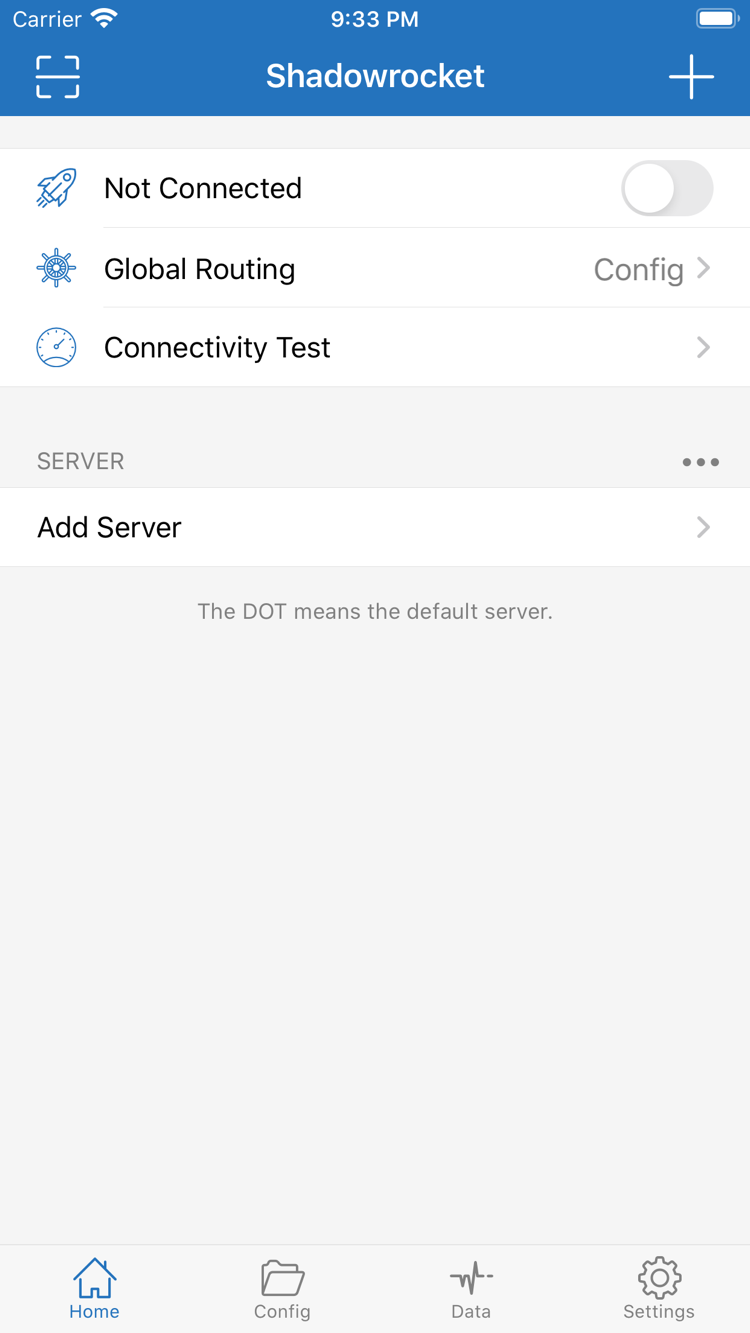
Shadowrocket app home screen

Rule: match first, then apply a policy

Rules determine how different requests are handled. View Rule in Config and set Global Routing to Config to route traffic using the selected configuration. Rules are usually matched from top to bottom; the matching rule's policy is applied. Put more specific conditions before broader ones. Keep a copy of the configuration before editing, then test with a specific domain. DOMAIN-SUFFIX matches a domain suffix, DIRECT means a direct connection, PROXY applies the proxy policy, and FINAL handles requests that did not match any earlier rule.

DOMAIN-SUFFIX,example.com,PROXY
See rule order and policy details →

Get Shadowrocket by platform

Two ways to get it: iPhone / iPad costs $2.99 one-time on the App Store; Mac, Windows, Android and Linux are free. These links lead to the download page, where you can choose installation instructions for your device.

iPhone / iPad

$2.99 one-time on the App Store; other platforms are free. The purchase is shared between the two devices. Check the App Store page for system requirements.

Before installing, verify the developer, icon and app ID. If you have already purchased the app, check your purchase history before repeating the process.

Mac

Free · Apple silicon / Intel. Check your chip type in About This Mac, then choose the matching installer.

If a system prompt appears the first time you open the app, follow the Privacy & Security instructions on the download page. You do not need to change server or subscription details.

Windows

Free. The download page provides a 64-bit installer. Before installing, confirm that the file came from this site's download page.

If SmartScreen blocks the file, verify its source first, then select “More info → Run anyway” to continue. Follow your organization's device policies on managed computers.

Android

Free. An arm64 installer is available. After downloading it from the download page, grant permission to the current installation source when prompted by the system.

“Install unknown apps” permission and VPN permission when connecting are separate. You can turn off installation-source permission after installation if you wish.

Linux

Free · deb / rpm / AppImage. Choose a format for your distribution's package manager and confirm your system architecture first.

Install deb and rpm packages with the corresponding package manager; AppImage requires execute permission. See the download page for commands and first-run prompts.

Three steps to your first connection

This overview uses the interface terms from iPhone / iPad as a guide. Make one manual connection before setting up automatic connections or complex rules. Change one variable at a time to identify what caused a difference.

  1. Add Server: enter existing connection details

    Prepare your subscription URL or server parameters. Get the URL from your service provider, then select Subscribe in Add Server and enter it. For an individual server, select the correct Type and fill in the corresponding fields. If you use Scan QR Code, verify the protocol, address and port after scanning; successful recognition does not mean the connection is working.

    After saving, return to Home and check that the expected entry appears under SERVER. If the imported subscription contains several servers, test one first. Avoid updating the list, changing rules and switching servers all at once.

  2. Global Routing: choose Config, Proxy or Direct

    For rule-based request handling, choose Config and confirm that the required configuration file is selected. Proxy sends requests through the proxy policy and is useful for a temporary comparison; Direct provides a direct-connection comparison. A mode is not a server protocol and cannot fix incorrect connection parameters. Switching modes without checking the configuration can make it seem as if saved rules are not working.

    If you are just getting started, note the current mode and file name. If some websites behave differently later, revisit these settings instead of immediately reinstalling the app or clearing all configurations.

  3. Connection toggle: grant permission and verify access

    Turn on the connection toggle and allow the VPN configuration when prompted by the system, then check the connection status. Run Connectivity Test and visit a specific destination page. Consider the test and actual access together: an enabled toggle only indicates that the connection process has reached a particular state. It does not guarantee that rules, DNS and remote services work for every domain.

    Use the same network and server during verification. If the toggle will not turn on, check permissions; if all requests time out, check the server; if only certain destinations fail, check rules and DNS. Adjust the setting at the layer where the issue occurs.

Verify the app and understand the purchase

Shadowrocket is a closed-source commercial app. This section distinguishes app identity, app access costs and your own connection service to help avoid confusion before installation.

Check three details on the store page

iPhone / iPad users should verify the developer name, Shadow Launch Technology Limited, the official icon and app ID 932747118. A similar name in search results is not enough to confirm the app's identity. Open the product page and check each detail. The icon helps with recognition; the developer and app ID distinguish listings with similar names. Do not rely only on search ranking or promotional copy to decide whether to install.

Store availability depends on account region

If Shadowrocket does not appear in the mainland China App Store, first check the region of the Apple ID used for the store and any existing purchase history. Region can affect app availability, currency and payment terms; it does not mean the device cannot use the app. If you need to change your region, check Apple's official region-change process in your system account settings and review prerequisites such as balances and subscriptions. Check the App Store page for iPhone / iPad system requirements.

Purchase history and restoring on a new device

Shadowrocket costs $2.99 one-time on the App Store for iPhone / iPad, with the purchase shared between the two devices. Mac, Windows, Android and Linux versions are free. When changing devices or reinstalling, iPhone / iPad users should use the original purchasing account to check purchased items before downloading again. Restoring the app does not restore all local settings. Save any configuration files you need separately and keep your subscription details secure.

Access and updates on other platforms

Installers for Mac, Windows, Android and Linux are provided on this site's download page and served through /dl/shadowrocket/. Choose the correct Apple silicon or Intel build for Mac, and the appropriate package format for Linux. Save your configuration before updating, then follow the installation instructions for your system on the download page. Manage iPhone / iPad app updates in the App Store; do not mix up these update paths.

Common questions for first-time users

Distinguish four stages—“app installed,” “details imported,” “connection established” and “destination accessible”—before deciding what to do next.

Why can't I access websites after importing a subscription?

Importing retrieves a server list. You still need to select a server, check Global Routing, allow the system VPN configuration and turn on the connection. Confirm the list is not empty, test the current server, then check rules and DNS for the destination request. A successful subscription update is not a connection test. Follow the subscription import steps to check each item.

Should I choose Config, Proxy or Direct?

Choose Config when using rules, and confirm the configuration file is selected. Proxy and Direct are useful for temporary comparisons between proxy and direct connections. Return to your usual setting afterward so later traffic is not handled using a temporary mode. Note the original mode and server before switching to compare results under the same conditions. See the quick-start guide for details.

Why is access still slow when server latency is low?

A latency test reflects a response under specific test conditions; it is not download bandwidth and does not indicate whether every destination is available. Keep the same network and test the same destination, then check whether only some requests are affected. If only certain domains are slow, check matching rules and DNS first. Continue by symptom in Troubleshooting.

What should I do when prompted for connection permission?

The system may ask to add a VPN configuration the first time you turn on the connection. Confirm that the prompt was triggered by Shadowrocket, then grant permission as requested. If permission was previously denied, retry the connection and check the prompt again. Also check whether device management policies restrict VPN access. Permissions and subscription validity are independent; changing a subscription will not fix a system permission issue. See the connection and verification guide for the steps.

Focused how-to articles

More on traffic statistics, system permissions and server selection. Establish a basic connection first, then use these guides to interpret specific readings and system prompts.